

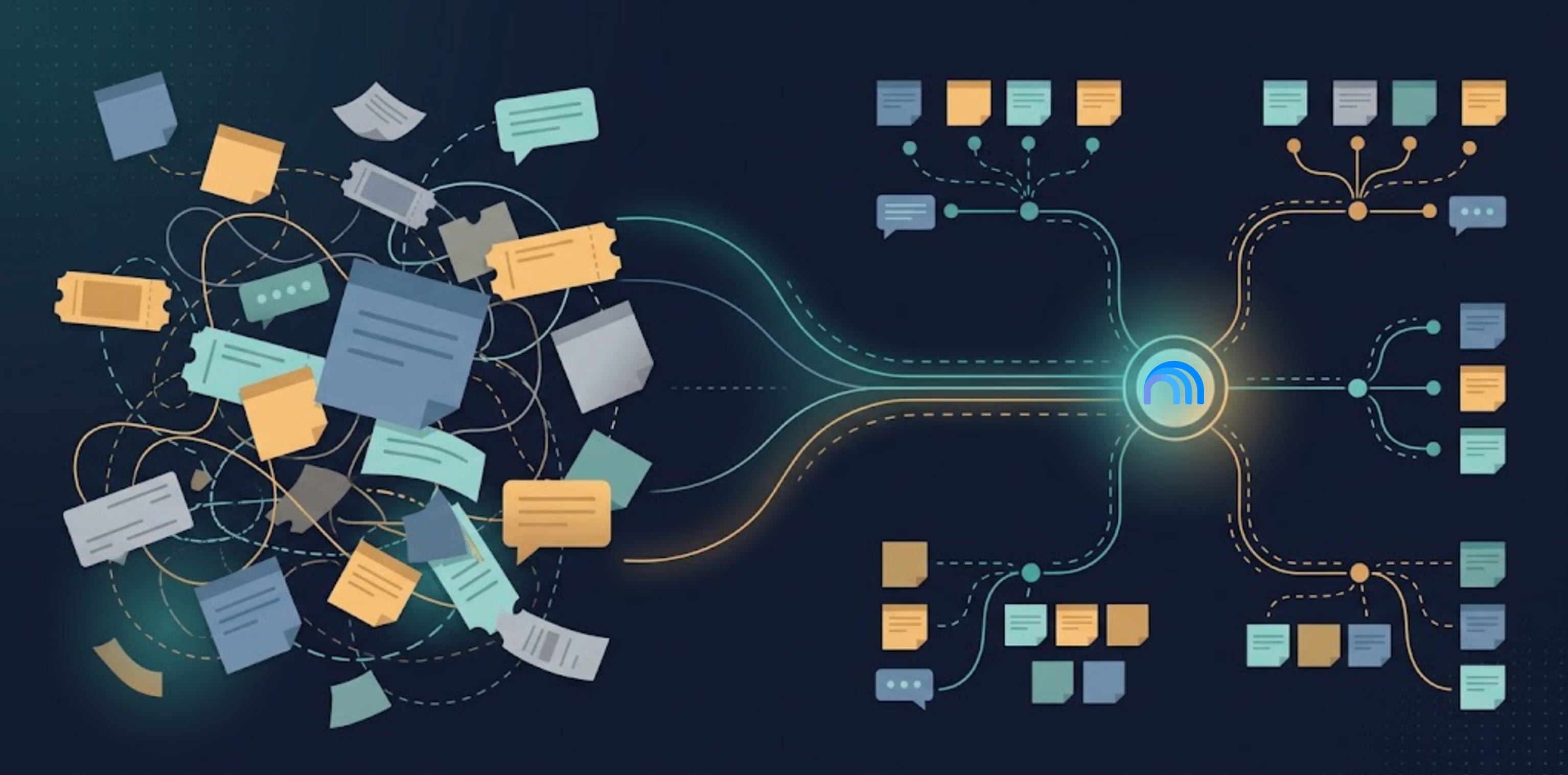
How much time did your team waste this week searching for answers that already exist somewhere?
The new engineer asks: “How does authentication work in our system?” The PM asks: “Has anyone touched this API field before?” Support asks: “Where’s the documentation for this feature?”
And everyone does the same thing, which is searching Confluence, digging through Jira, posting in Slack and waiting for someone who knows. A five-minute question turns into half a day.
I’ve been experimenting a lot with Gemini Notebook for the past few months to solve exactly this problem. It’s not perfect - the UX is frustrating and file management is terrible - but it’s solving real problems I couldn’t solve easily before.
A quick note on the name. When I first wrote this about a year ago it was still called NotebookLM, but Google has since rebranded it to Gemini Notebook, so that is the name I’m using from here on.
I’m glad they did.
Every time I asked someone if they had looked up the issue on our “Notebook LM Notebook” I had to catch myself to make sure I didn’t get tongue-tied as it just never rolled off the tongue. “Gemini Notebook” is a much nicer name to say.
Here are 6 use cases you can copy, step-by-step.
Use Case #1: Tool Documentation Agents (Internal Help Desk)
The Problem (Before AI)
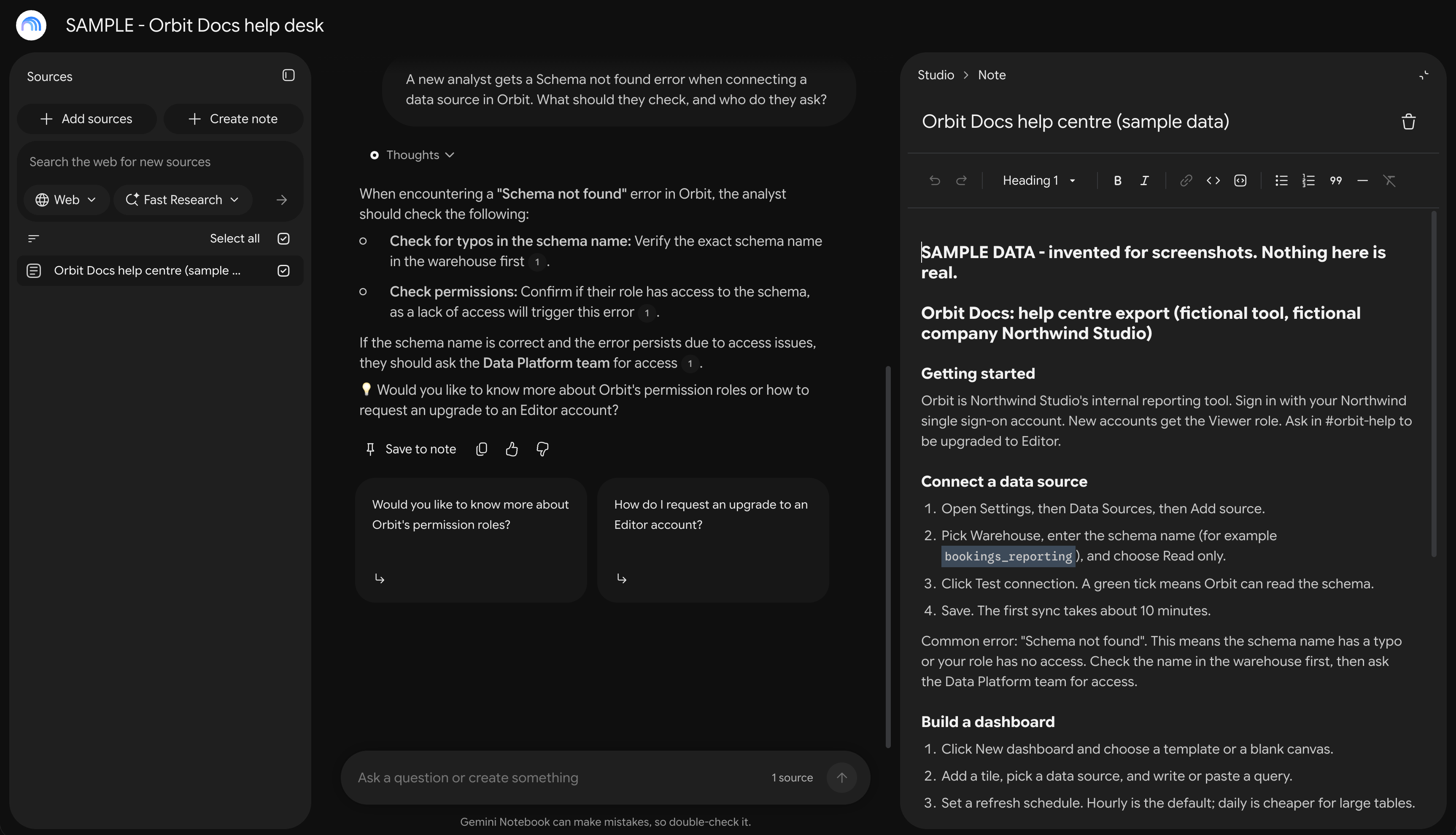
Your team uses Cursor, or Jira, or whatever internal tool. Someone new joins and can’t figure out how to configure something basic. They ask in Slack. Someone answers. Next week, someone else asks the same question. Repeat indefinitely.
Information is scattered across help docs, wikis, Slack threads nobody can find. Support burden falls on specific people who become bottlenecks. New team members take months to get up to speed because finding answers takes forever.
Only 12% of employees feel their organisation does great onboarding. And what kills me is that 42% of workers say the knowledge they need is unique to their context. Generic documentation doesn’t cut it. You need something that understands YOUR tool stack.
The AI Solution
I’ve built agents for Cursor, Gemini Notebook, Claude code, Hex, Snowflake, internal tools - takes about 30-60 minutes once, saves hours every week. Here’s exactly how to do it.
STEP-BY-STEP WORKFLOW
1. Gather Documentation Links
Go to tool homepage and dev docs homepage
You need the parent page with the tree structure in the nav bar
Not individual pages - the main page that links to everything
2. Extract All Links
Install Link Klipper Chrome extension
Run it on the docs page
Exports a CSV of every link in the navigation
Takes about 30 seconds
3. Use my Agent Builder Bot
Link here → Prompt and agent builder
Use my “Agent Builder” on the ChatGPT Store
Tell it: “I’m building an agent for [tool name]”
Bot walks you through refinement
Type “ok, go” at any point for directions
4. Give Bot the Context
Upload the CSV of links
Say “that’ll be the context for the agent”
Bot rewrites the instructions to match
5. Upload to Gemini Notebook
Go to Gemini Notebook
Upload the markdown custom instructions from agent builder
This becomes your bot’s “personality”
6. Rename for Organisation
Start filename with “A” or number + name
Example: “A-Cursor-Bot” or “01-Cursor-Documentation”
Why? It keeps your sources easy to find as the list grows.
7. Upload Link CSV
Use Gemini Notebook’s link uploader
Upload the CSV of links
Gemini Notebook scrapes every link and adds as context
Takes a few minutes depending on how many pages
8. Test the Bot
Ask questions about the tool
Bot sources only from provided context
Provides direct URL links to help docs
Check that answers make sense
9. Share with Team
Create Google Group for access control
Share notebook with the group (group could also just be everyone in your company)
Everyone gets access to same knowledge base
Tools Used
Link Klipper (Chrome extension)
Agent Builder Bot (GPT Store)
Gemini Notebook (Google). I use it on Workspace Enterprise at work and Plus personally, so check Google’s current plans for what is free.
Google Groups (sharing)
Why This Works
Gemini Notebook only sources from what you give it. That’s the key. It won’t make up answers or pull from the wider internet. You get citations with direct links. The team can maintain and update it centrally. Check Google’s current plans for what it costs you.
What makes this actually useful is that new team members reach expert-level knowledge 4x faster when they have instant, sourced answers. Instead of 8 months to get up to speed, imagine 2 months. That’s not hype - that’s from actually watching people onboard with this vs without.
Time Savings
One-time setup: ~30-60 minutes
Ongoing: No support burden for common questions
Team finds answers instantly vs asking in Slack
The hidden time saver? You stop “explaining something to one person at a time.” When you find yourself answering the same question for the third time, that’s your signal to build this.
Gotchas & Lessons Learned
The UX is still bad (I cannot stress this enough), but the growing list of Studio features makes up for it
You cannot delete several files at once by hand, so bulk deletion needs a Chrome extension
File management is crap - name files strategically
Put the date the file was generated at the start of its name, so you can see at a glance how old it is. If it was exported two weeks ago, you know everything since then is missing and it is time to export again
Multiple instruction sets possible (say “follow instruction set XYZ”)
Save really good answers as notes or they get deleted/lost
Pictures don’t get scraped and aren’t supported
Can’t have personal notes - sharing shows all notes to everyone
You can now share a note as a Google Doc, but the source tags are stripped in the conversion. It would be much better if they carried over
Use Cases
Cursor documentation bot (what I built first)
Internal tool help desks
Onboarding new team members
Reducing support ticket burden
Engineering tool documentation
Replication Guide
Find tool’s documentation homepage with nav tree
Install Link Klipper Chrome extension
Export CSV of all documentation links
Find “Agent Builder Bot” on GPT Store
Tell bot what tool you’re documenting
Provide CSV, let bot refine instructions
Upload bot’s markdown output to Gemini Notebook
Rename with A-prefix or number for sorting
Upload CSV to Gemini Notebook’s link uploader
Create Google Group and share notebook
Test with common questions your team actually asks
Use Case #2: Mind Map Project Discovery (Visual Navigation)
The Problem (Before AI)
You’re starting a complex project. Documentation is overwhelming. Stakeholders need different views of the same information. Leadership wants high-level overview. Engineering wants technical details. Product wants user journeys.
Information overload prevents quick understanding. You spend half your discovery time just helping people understand what you’re building.
I’ve found that product discovery typically takes 4 weeks minimum. But what kills me is that half that time is spent just helping people navigate what you’re building. Mind maps cut that navigation time dramatically.
The AI Solution
This one took me a while to figure out, but once I cracked it, I’ve used it on every major project since. You create multiple views of the same project - each optimised for different stakeholders.
STEP 1: Create Empty Template Structures
Ask AI (I use Cursor or ChatGPT) to generate empty documentation templates for different views:
Stakeholder-sensitive view (what leadership needs)
Salesforce stages view (what sales needs)
Actor-based view (who does what)
Team-based view (which team owns what)
MVP vs GA vs Future view (timeline phases)
Technical integration view (systems and APIs)
Journey flow template (step-by-step user flows)
The templates have headers only, no content. Gemini Notebook fills them from your actual project docs.
STEP 2: Upload Templates to Gemini Notebook
Create a new notebook
Upload ALL empty templates as sources
Upload actual project documentation (user journeys, PRDs, discovery docs)
Everything goes into one notebook
STEP 3: Generate Mind Maps
Here’s the trick:
Untick every source except one empty template
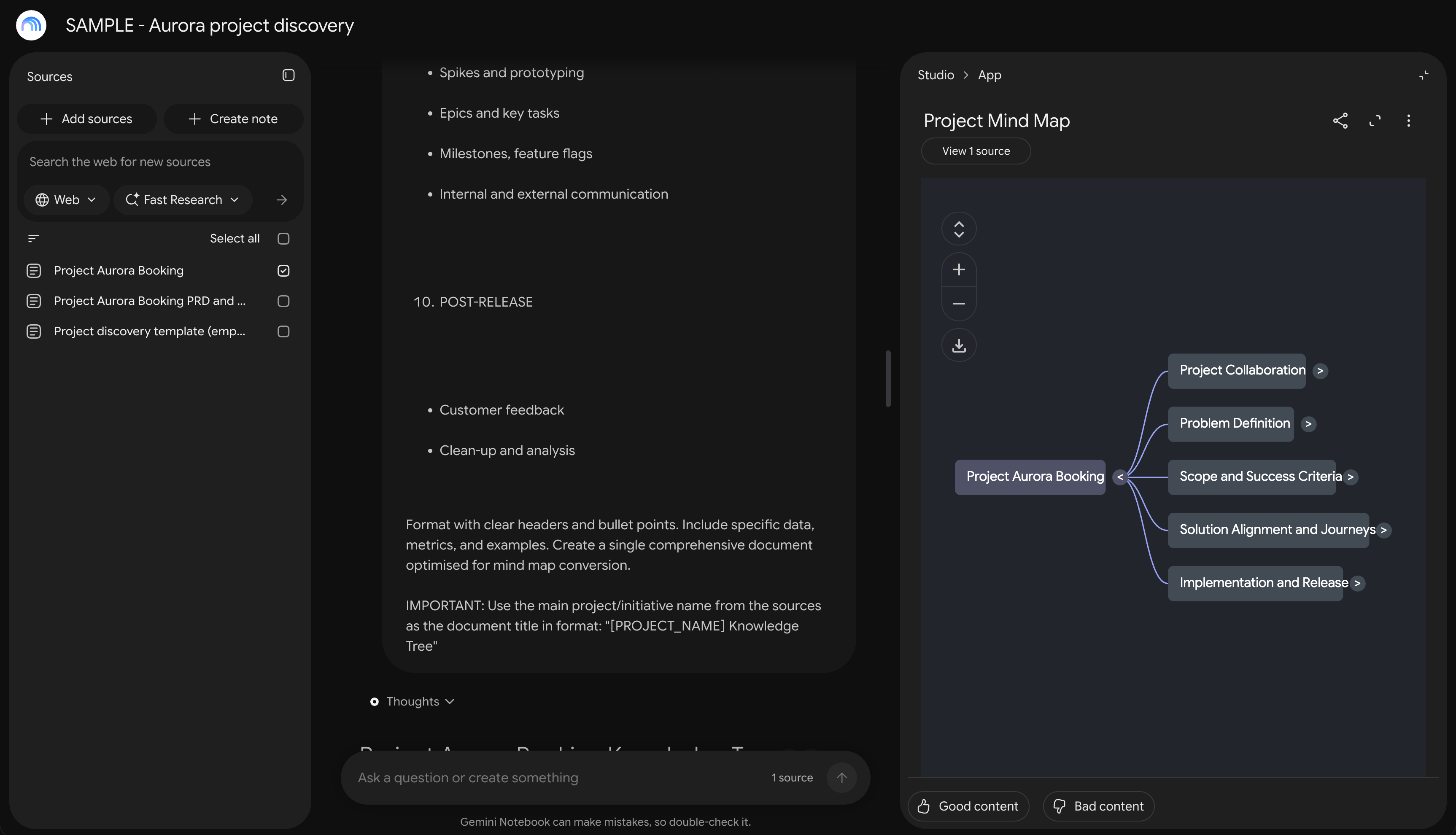
Press Mind Map in Studio, then Generate now
The map appears in Studio with your template headers as the branches
Open a branch with the arrow next to it, or press Expand all nodes
STEP 4: Fill It With Your Real Project
Gemini Notebook no longer has a Refresh button on a mind map, so once one is generated it stays as it is. The way round that is to build a new map from a note that already holds your project’s content, which is what the Knowledge Tree prompt below is for.
Run the Knowledge Tree prompt with all your sources ticked
Save the answer as a note
Untick everything except that note
Press Mind Map again
Tick all your sources again, so chat answers draw on everything, with citations
STEP 5: Share with Stakeholders
Different stakeholders use different template mind maps:
Sales team uses “Opportunity Stages View”
Engineering uses “Technical Integration View”
Leadership uses “Stakeholder-Sensitive View”
Everyone has same underlying source of truth
The “Knowledge Tree” Prompt
I’ve refined this prompt over multiple projects. Run it in Gemini Notebook with your context already loaded:
Generate a structured outline document titled "[PROJECT NAME] Knowledge Tree" that maps this project's complete scope for mind mapping. Start with the project name as the title, then organise hierarchically:

PROJECT TITLE: [Extract the main project/product/initiative name from the sources and use as: "PROJECT_NAME Knowledge Tree"]

1. PROJECT COLLABORATION
- Opportunity name and ID, type, RAG status
- Initiative sponsors, business owners, program manager
- Collaborators and communication channels

2. PROBLEM DEFINITION
- Target audience / personas
- Priority, severity, frequency
- Delighting, escalating and blocking factors
- Evidence of the problem

3. PROBLEM VALIDATION & ROI
- Customer evidence or feedback
- Riskiest hypothesis and what would validate it
- Assumptions about the cause
- ROI

4. ANALYSIS & IMPACT
- General assumptions
- Open questions, key decisions, trade-offs, blocked items
- Financial impact and value to the company
- Competitor analysis

5. SCOPE & SUCCESS CRITERIA
- In scope and out of scope
- What success looks like
- Measurable impact and user outcomes

6. SOLUTION ALIGNMENT
- Current and proposed process
- High-level user stories (MoSCoW, planned delivery)

7. IMPLEMENTATION & RELEASE
- High-level approach
- Dependencies on other teams
- Security, compliance, geographical and legal considerations

8. SUPPORTING RESEARCH
- Links to supporting research
- Quantitative research

9. DESIGN, BUILD & COMMUNICATION
- Spikes and prototyping
- Epics and key tasks
- Milestones, feature flags
- Internal and external communication

10. POST-RELEASE
- Customer feedback
- Clean-up and analysis

Format with clear headers and bullet points. Include specific data, metrics, and examples. Create a single comprehensive document optimised for mind map conversion.

IMPORTANT: Use the main project/initiative name from the sources as the document title in format: "[PROJECT_NAME] Knowledge Tree"
The ten sections follow the headers in my PRD templates, so the tree covers the same ground as the empty template maps. Gemini Notebook may merge some of them, so expect fewer than ten branches.

Then:
Save the answer as a note. It shows up in your Sources list straight away
Untick all sources
Tick only the new note
Press Mind Map in Studio
Once it is done, tick all sources again
Tools Used
Gemini Notebook (Google)
Claude Code/Cursor (template generation)
Mind Map Studio (Gemini Notebook feature)
Why This Works
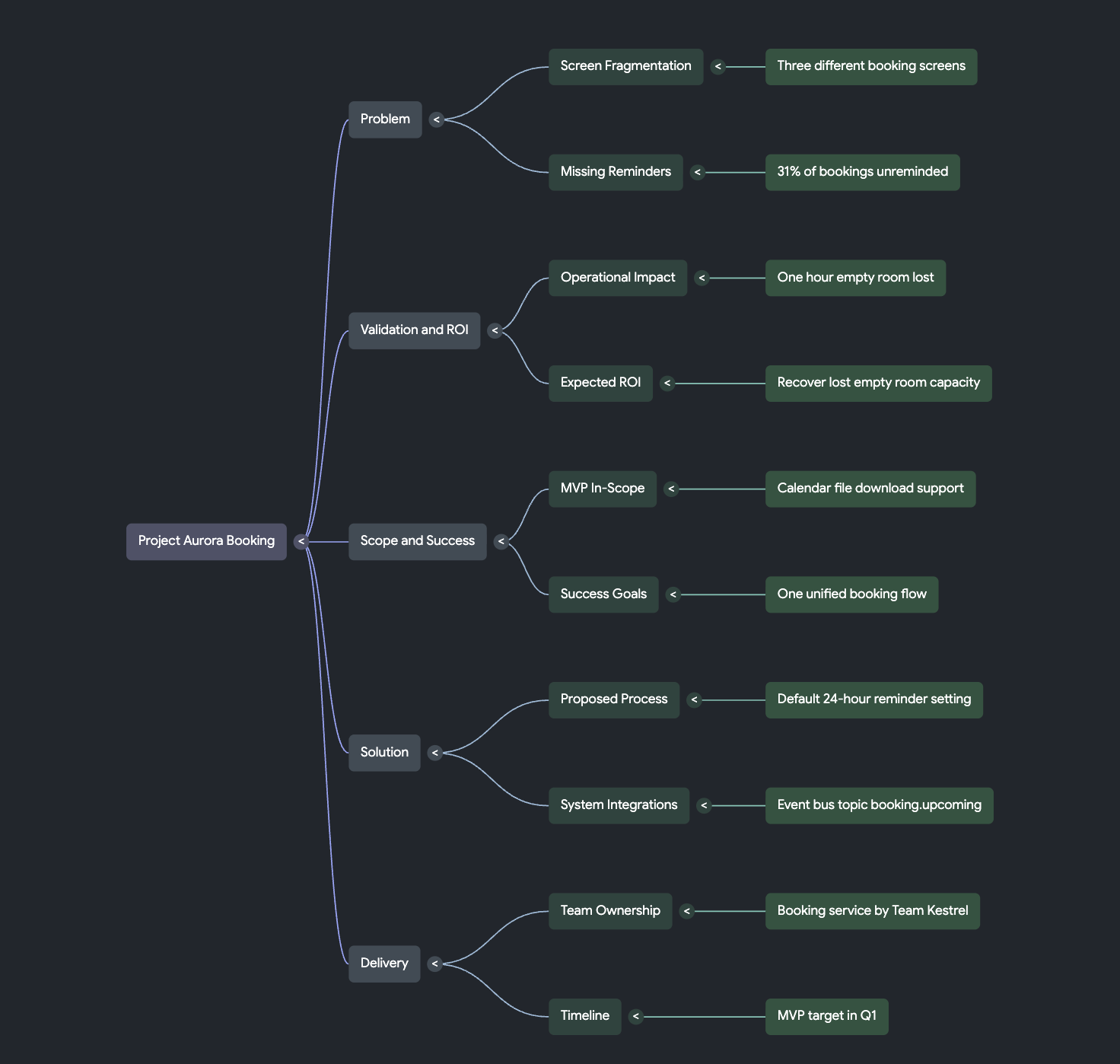
Multiple views of the same information. Interactive, clickable navigation. Reduces cognitive load. Sources are always cited. You can regenerate mind maps by simply changing template headers.
What I’ve found is that knowledge grows better in stable, long-lived teams, but documentation still matters. The problem is traditional docs don’t provide different views for different audiences. Mind maps solve this - leadership gets their high-level view, engineers get their technical view, everyone’s looking at the same truth.
Time Savings
Creates comprehensive project overview in minutes vs hours
Stakeholders self-serve for information
Reduces “can you explain this again?” meetings
Leadership gets quick visual understanding
Those “walk me through the project” meetings that take 30-60 minutes? Cut to 10 minutes with a mind map walkthrough. And stakeholders can explore on their own instead of booking your calendar.
Gotchas & Lessons Learned
Must turn off sources before generating mind map from template (this confused me for days)
Template headers drive mind map structure - choose carefully
Can regenerate by simply editing template headers
Gemini Notebook file management is still terrible
Use Cases
Any project that requires documentation
User journey visualization
Complex feature documentation
Cross-functional project coordination
Product discovery presentations
Replication Guide
Use AI to generate 5-7 empty template structures (different views)
Create Gemini Notebook project
Upload all templates as sources
Upload project documentation
Turn off all sources except one template
Generate mind map in Studio
Turn all sources back on (except for the templates)
Use “Knowledge Tree” prompt for comprehensive view
Share different mind maps with different stakeholders
Use Case #3: Issue Investigation & Root Cause Analysis
The Problem (Before AI)
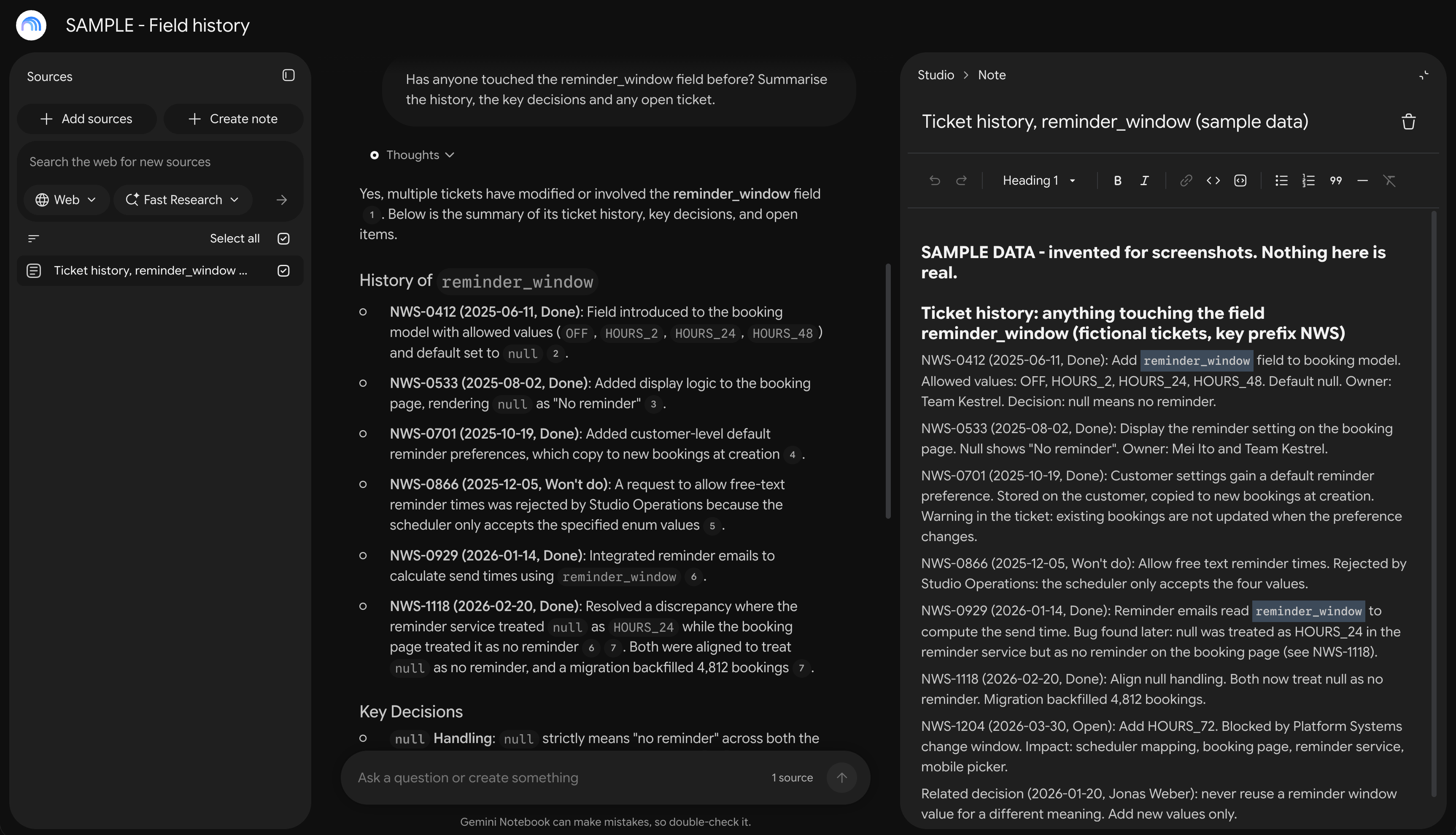
API field breaks in production. You need to find out if anyone touched this field before. Could be in any Jira ticket across years of history. Manual search takes hours or days.
Context is spread across multiple tickets. Hard to trace change history. You end up Slacking people: “Hey, did you work on this?” And waiting. And waiting.
Google’s SRE research emphasizes that postmortems should “fix systems and processes,” not just address symptoms. But you can’t fix the system if you don’t understand the full context of what happened. And that context is usually buried in tickets from 6 months ago that nobody remembers.
The AI Solution
I built a Python script for this (well, Cursor built it for me). Now I can find root cause in minutes instead of days.
WORKFLOW
1. Python Script Export (Done in Cursor/Claude code)
Script exports keywords from Confluence and Jira
Based on your search criteria
Example: Search for specific API field name
I run this script anytime something breaks
2. Generate Context File
Script creates single MD file
Contains all Jira tickets mentioning that field
Includes all Confluence pages with context
One file with everything relevant
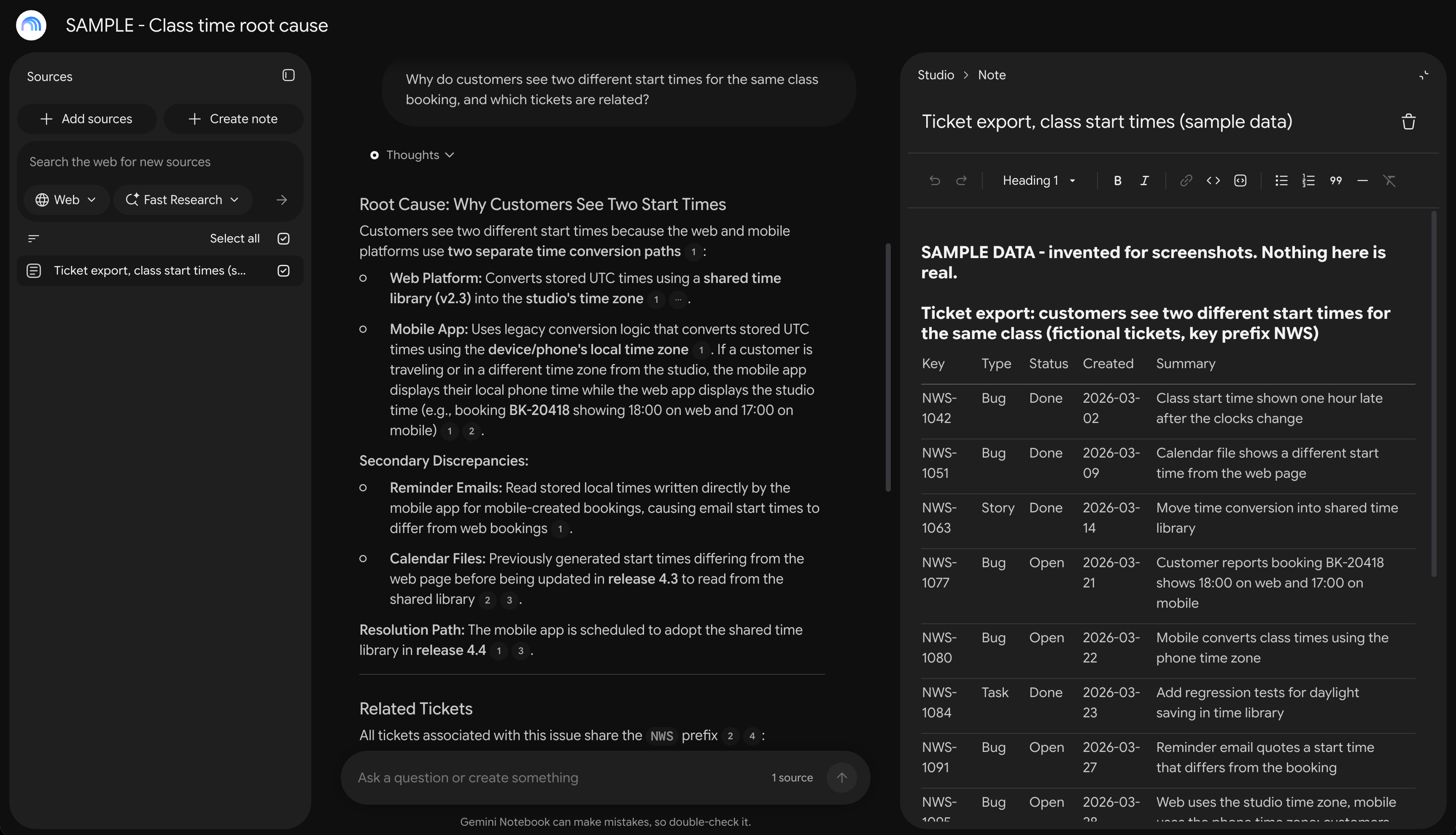
3. Drop into Gemini Notebook
Upload MD file as source
Ask: “My team is having difficulty with [API field], can you help?”
Gemini Notebook searches all tickets
4. Get Root Cause
Gemini Notebook finds relevant tickets
Provides sources (links to specific Jira tickets)
Shows: “In this ticket, XYZ changed this field, which caused this validation error you’re seeing”
Direct links to dig deeper
5. Incredibly Fast Discovery
Root cause identified in minutes
Can see pattern across multiple tickets
Historical context nobody remembers
Alternative Approach: Full Ticket Export
Don’t want to build a script? Here’s the lazy version that still works:
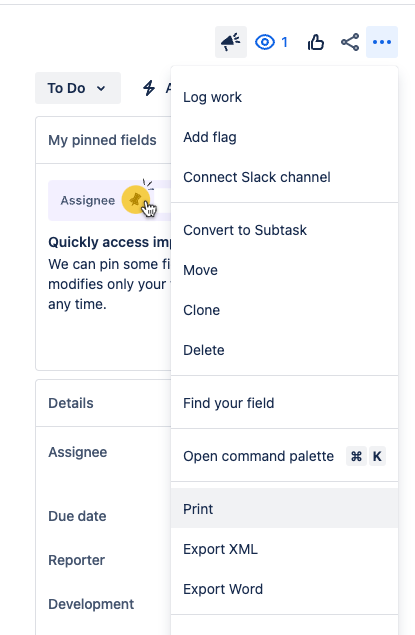
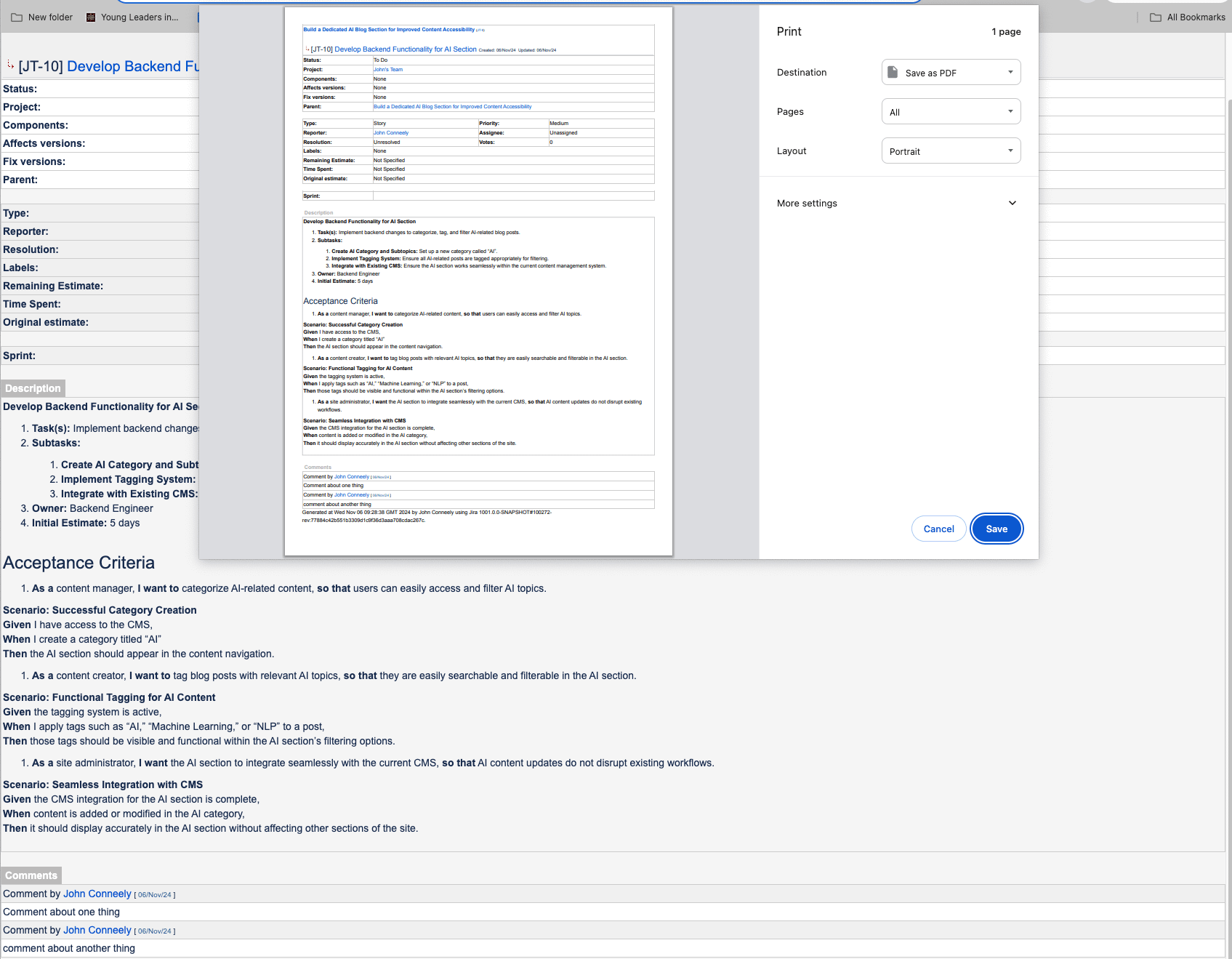
Export entire Jira filter to PDF
Drop PDF into Gemini Notebook
Now have every Jira ticket your company has ever done
Ask: “Has anyone touched this field?”
Gemini Notebook searches everything with sources
This is not limited to Jira or Confluence. It works with any ticketing or product tool where you can export everything. If the tool has an MCP you can connect to, you can build a small app that collects all of the content in each ticket.
Whichever way you get the data out, check that these come with it:
Status, so you know what was delivered and what was dropped
Comments, because acceptance criteria are often frozen when a ticket moves to in progress and never updated again, even as the work is delivered. The comments sometimes hold the real truth, such as where the testing happened or where a bug was resolved
Linked tickets, because those links are the mesh an agent needs to follow one ticket to the next and piece the whole story together
If you export to PDF and there are a lot of pages, wait for all of them to load before you press print. Printing too early gives you a partial file. To check, drag the scroll bar down to the middle of the page when you are in the print preview screen and once it stops bouncing, the page has fully loaded and you are ready to print.
Tools Used
Python script (custom, built in Cursor)
Gemini Notebook (Google)
Ticket export (PDF), from Jira or any ticketing tool
Why This Works
Searches historical context impossible to remember. Provides sources and citations, not just answers. Much faster than manual Jira searches. Can export entire Jira history. Sources only from your data - no hallucinations.
You’ll “never, ever again debug or understand this code as well as you do right now, with your original intent fresh in your brain.” But when you’re investigating an issue weeks or months later, you’ve lost that context. This approach gives you back the original context through historical tickets.
Time Savings
Root cause in minutes vs hours/days
No need to ask “who worked on this?”
Historical context instantly accessible
Reduces debugging time significantly
Stack Overflow research shows that teams with rapid feedback loops find more than 80% of bugs quickly. But what about the bugs that slip through? Those are the ones hiding in historical context. This workflow helps you find them fast.
Gotchas & Lessons Learned
Python script is custom (build once, reuse forever)
Jira filter export works for entire history
Keep exports updated periodically (I do monthly)
Gemini Notebook handles large PDFs well
Use Cases
API field troubleshooting (my most common use)
Bug investigation
Feature change history
“Who touched this last?” questions
Understanding legacy decisions
Replication Guide
Build Python script (or use Cursor/Claude to generate)
Script exports keywords from Jira/Confluence
Or: Export Jira filter to PDF for full history
Upload to Gemini Notebook
Ask questions about specific fields/issues
Get sources with direct links to tickets
Use Case #4: Architecture Validation & Feasibility Checks
The Problem (Before AI)
New feature requirements might conflict with existing architecture. You need to validate against system documentation. Don’t want to break existing patterns. Manual review takes significant time.
You can’t just “ask the person who built it” if they’ve moved on or if the system has evolved. And reading through 50 pages of architecture docs to check one thing is nobody’s idea of a good time.
The AI Solution
This one saves me from making architectural mistakes before they happen.
WORKFLOW
1. Load System Documentation
Upload architecture docs to Gemini Notebook
Include coding standards
Tech choice standards
Existing system design docs
All in one notebook
2. Upload New Requirements
Add new feature PRD or spec
Or just paste requirements as a note
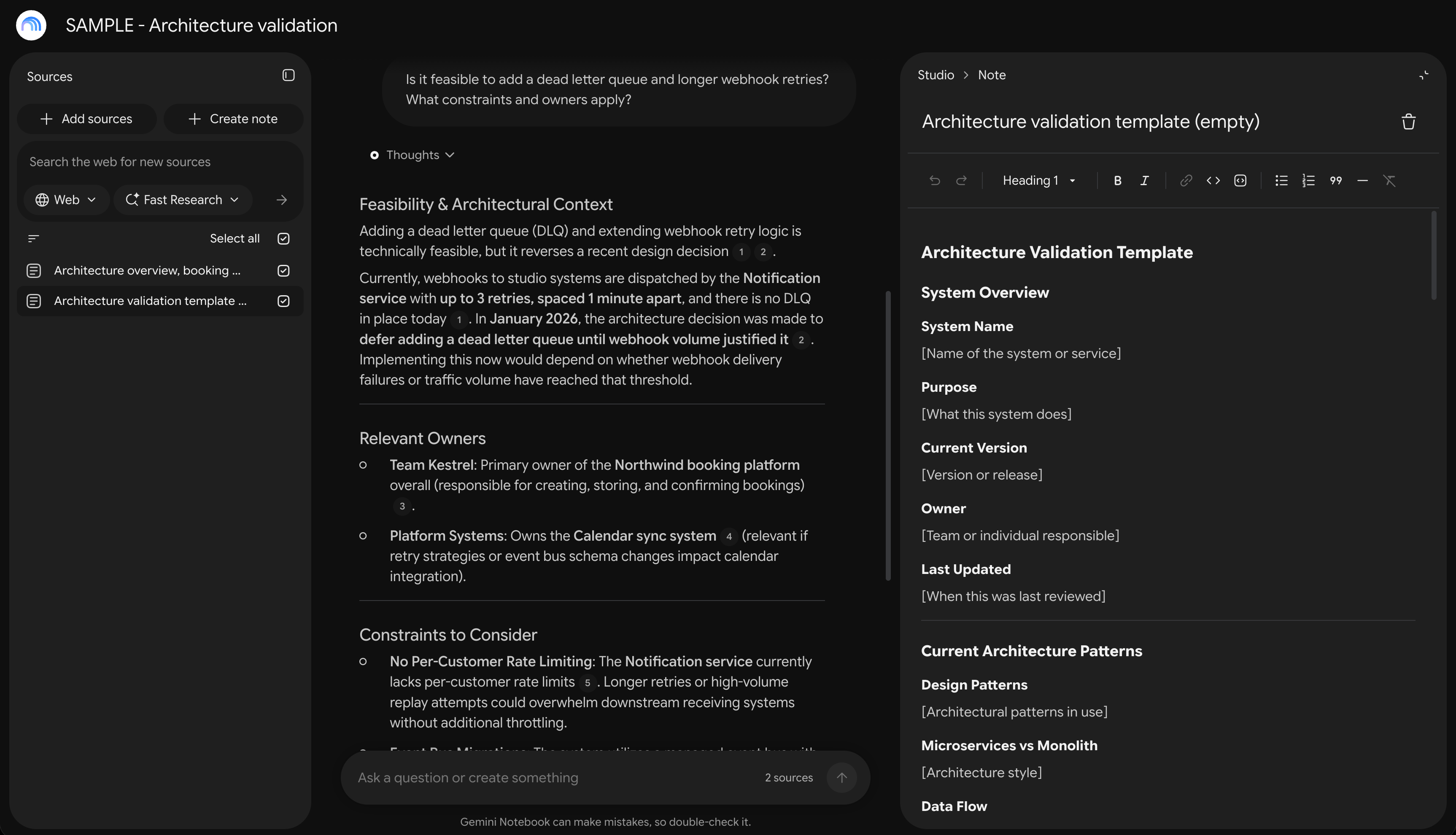
3. Ask Validation Questions
“Does this requirement fit our architecture?”
“Can you suggest any changes we might need?”
“What patterns should we follow for this?”
4. Get Conflict Analysis
Gemini Notebook identifies conflicts
Suggests architectural changes
Example: “You need an extra event here, you need a new consumer for that event”
Shows whether you can extend existing vs create new
Why This Works
Gemini Notebook sticks religiously to sources. Can ask it to suggest changes (it breaks out of constraints when you ask). Provides specific recommendations. Sources all suggestions from your docs. Prevents architectural drift.
Product discovery research emphasizes validating whether solutions are “usable, useful, and feasible” - this workflow handles the “feasible” part by checking against your actual system architecture, not theoretical constraints.
Tools Used
Gemini Notebook (Google)
System documentation (architecture, coding standards)
Time Savings
Feasibility check in minutes vs hours
Prevents architectural mistakes early
Reduces back-and-forth with architects
Catches conflicts before development
You’re not just saving time - you’re creating shared understanding. When the validation comes from your own architecture docs (with citations), there’s no argument about whether it fits or not.
Gotchas & Lessons Learned
It only knows what is in the document, so a gap in your architecture doc becomes a gap in the answer
Keep a decisions section in the doc. In my test, the line recording an earlier “no dead letter queue” decision changed the answer
Out-of-date docs give out-of-date answers, so update the doc when the architecture changes
Treat the answer as a starting point for the conversation with your architect, not a sign-off
Use Cases
New feature validation
Architecture review
Tech stack alignment
Coding standards compliance
Replication Guide
Upload system documentation to Gemini Notebook
Upload new requirement/PRD
Ask: “Does this fit our architecture?”
Ask: “Can you suggest changes needed?”
Review suggestions against sources
Use for early validation before development
Use Case #5: Historical Context Search (“Has Anyone Touched This?”)
The Problem (Before AI)
Need to know if specific field or feature was discussed before. Information buried in old Jira tickets. Can’t remember who worked on what. Need quick context for decisions.
Only 4% of companies consistently document their processes. The rest rely on tribal knowledge and scattered tickets. When someone leaves or moves teams, that knowledge evaporates.
The AI Solution
This is basically Use Case #3 but broader. Same script, different questions.
WORKFLOW
1. Export Full Jira History
Export Jira filter to PDF (print details button when In a filter search)
Can export entire company history (yes, really)
One-time effort per quarter or whatever
Same export as use case 3, so check that status, comments and linked tickets come through
2. Upload to Gemini Notebook
Single upload of all tickets
Takes a while first time
Worth it
3. Ask Questions
“Has anyone touched this field?”
“What tickets mention [feature]?”
“Who worked on [system]?”
Any question about your project history
4. Get Sourced Answers
Gemini Notebook finds all relevant tickets
Provides direct links
Shows context from each ticket
No more digging through Jira manually
Alternative: Keyword-Based Export
Use Python script (Use Case #3)
Export only tickets matching keywords
Smaller, more focused context file
Faster searches
Tools Used
Ticket export (PDF), from Jira or any ticketing tool
Gemini Notebook (Google)
Python script (optional, for keyword filtering)
Why This Works
Company memory in searchable format. Sources with direct links. Faster than manual Jira searches. No hallucinations - only from your tickets.
If you’re explaining something to one person at a time, you need a better system. This is that system. Your entire team’s history, searchable with citations.
Time Savings
Find historical context in seconds
No need to ask team members
Reduces “who worked on this?” Slack messages
Those Slack interruptions where someone asks “Hey, did we ever discuss [X]?” - they disappear. Team members find their own answers, sourced from actual tickets, without disrupting anyone’s flow.
Gotchas & Lessons Learned
The answer is only as complete as the export, so check that status, comments and linked tickets came through
Ask about “Won’t do” tickets too, because rejected ideas are part of the history
Re-export on a schedule, and check the date at the start of the file name to see how stale it is
Use Cases
“Has anyone changed this field before?”
Finding out why a decision was made
Checking what is still open before you start work
Getting up to speed on a feature’s history
Preparing for a refinement session
Replication Guide
Export Jira filter to PDF (or use keyword script)
Upload to Gemini Notebook
Ask questions about fields/features/history
Get sourced answers with ticket links
Use Case #6: Stakeholder Directory & Team Context
The Problem (Before AI)
New to project or team. Don’t know who owns what. Need to understand team structure. Stakeholder personas unclear.
Only 12% of employees feel their organisation does great onboarding. When you’re new to a project, figuring out “who should I talk to about X” can take weeks. This shortens it to minutes.
The AI Solution
I built this for a project of mine when I realised I couldn’t keep track of which team owned what.
WORKFLOW
1. Create Stakeholder Documentation
Document team structure
Roles and responsibilities
Stakeholder personas
Who owns what systems
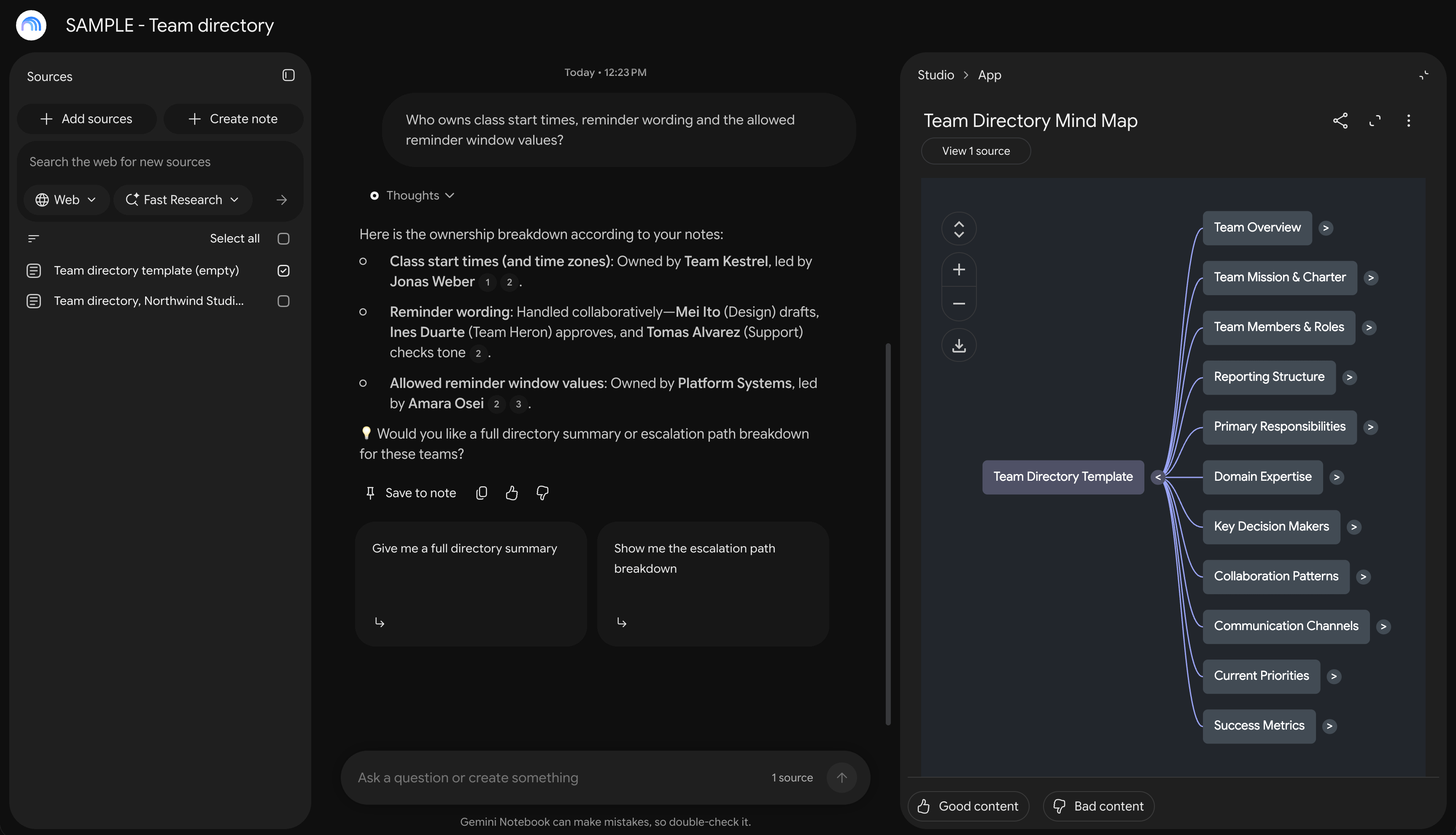
2. Generate Mind Map (Use Case #2 method)
Create team-based view template
Upload to Gemini Notebook with team docs
Generate mind map
3. Navigate by Team/Persona
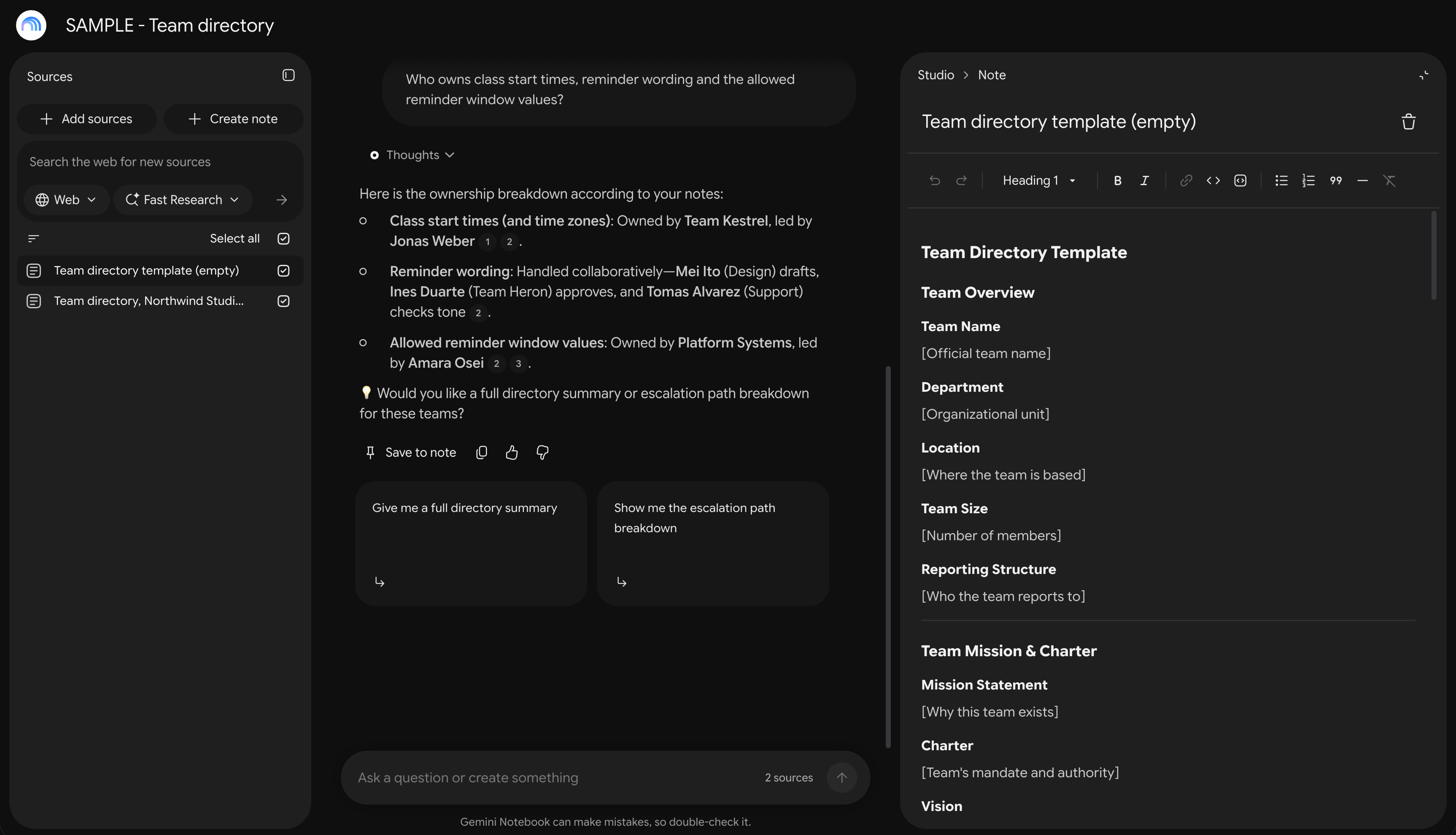
Click “Operations” → see Operations team context
Click “Ops Analyst” → see persona details
Click “Ops Manager” → see manager persona
All sourced from your docs
4. Search for Context
Ask about specific teams
Get sourced information
Understand relationships
Tools Used
Gemini Notebook
Mind Map Studio (Gemini Notebook feature)
Stakeholder documentation
Why This Works
Visual directory of people and teams. Searchable team context. Onboarding new team members. Quick reference for cross-functional work.
Knowledge retention works best in stable teams, but you still need to understand who does what. Communities of practice help, but they require active participation. This gives you passive access to team context whenever you need it.
Time Savings
Instant access to team information
Reduces “who should I talk to?” questions
Faster onboarding
New team members reach expert knowledge 4x faster when they have instant access to “who knows what” without having to ask around. This is how you do that.
Gotchas & Lessons Learned
The mind map built from an empty template only shows the template headings, so ask the chat for the actual names and owners
A stale directory confidently names the wrong owner, so update it when teams change
Keep it to roles, teams and channels, not personal details
Use Cases
“Who owns this?”
“Who approves this?”
Finding the escalation path
Onboarding a new team member
Finding the right channel
Replication Guide
Document stakeholder/team information
Create team-based view template
Upload to Gemini Notebook with team docs
Generate mind map
Share with team for quick reference
All six come down to the same idea, giving Gemini Notebook only the documents that matter and asking it what you would otherwise ask a person. Every answer comes with citations you can check. Pick the use case that costs you the most time this week and try it. If you build something from it, reply and tell me how it goes.
I have some other Product Management content here if you found this useful.
I’d love if you subscribed! I’m trying to build a bit of a following to try and help folks in the industry and make their jobs a little bit easier.